How to use the AppraisalPRO OBD scanner to appraise with the mobile app
The AppraisalPRO OBD scanner plugs into a running vehicle and checks for mechanical issues while you do a walk-around to complete an appraise in the AccuTrade app. When the scan completes, you get a diagnostic report, so you can acquire vehicles with more confidence.
In this article you will learn how to plug in the scanner, start an appraisal, run the scan, and open the diagnostic report.
To get started
Log in to your AccuTrade mobile app
Prerequisites
- Download the AccuTrade app from the App Store or Google Play
- Use your Cars.com credentials to log in to the app
1Plug in the AppraisalPRO OBD scanner
Run the OBD scan to uncover any mechanical problems:
- Start the vehicle
- Plug the OBD scanner into the port under the steering wheel
- Check for a green light; it means the scanner is connected
Note: You don’t need to pair the scanner through Bluetooth settings. It will pair automatically with the AccuTrade app open. Keep the vehicle running, the scanner plugged in, and open the app.
2Start an appraisal
- Tap the blue plus sign icon
- Tap Dealer Acquisition
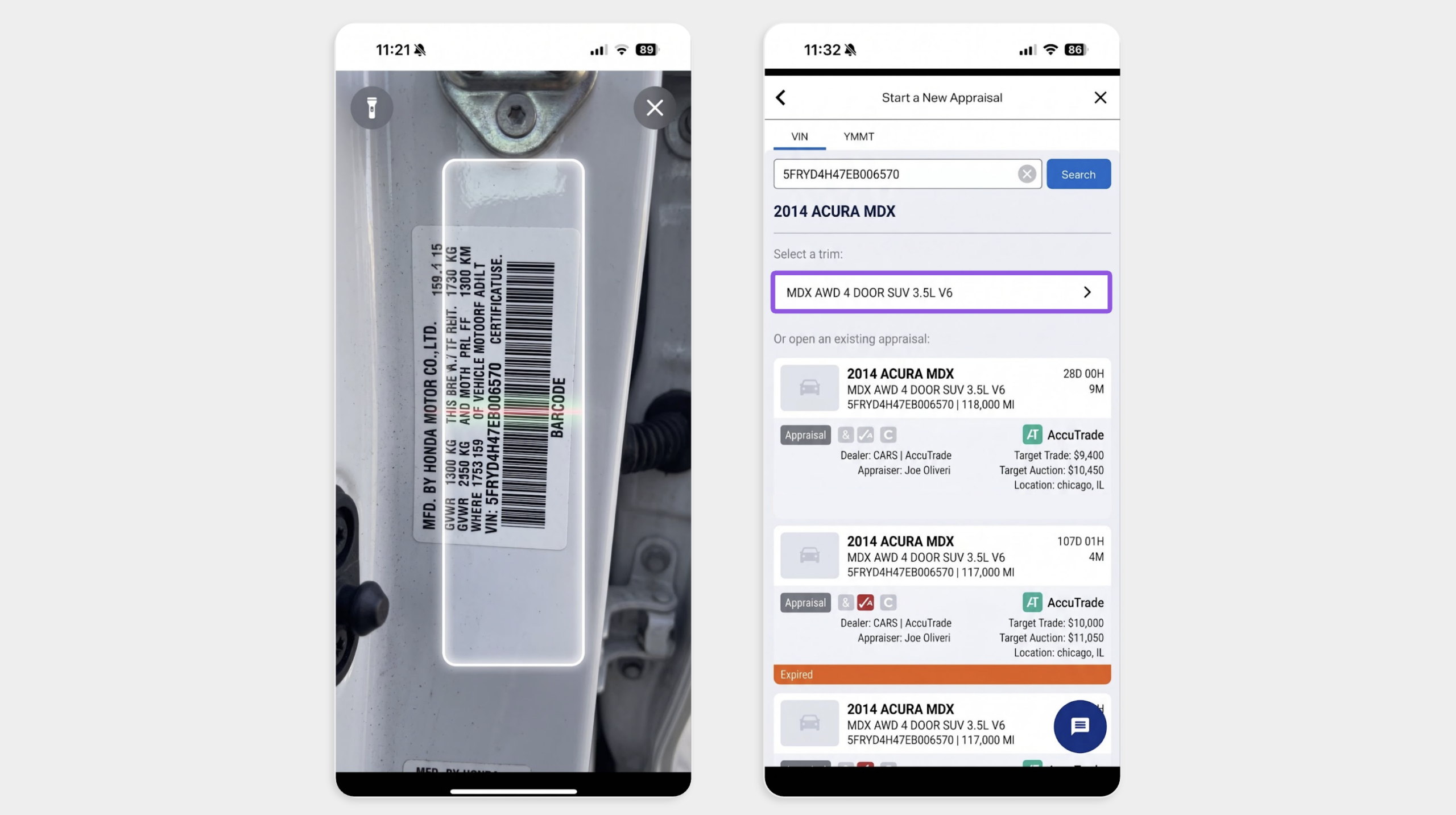
- Tap the Scan VIN box
- Select Allow if the app asks for camera access
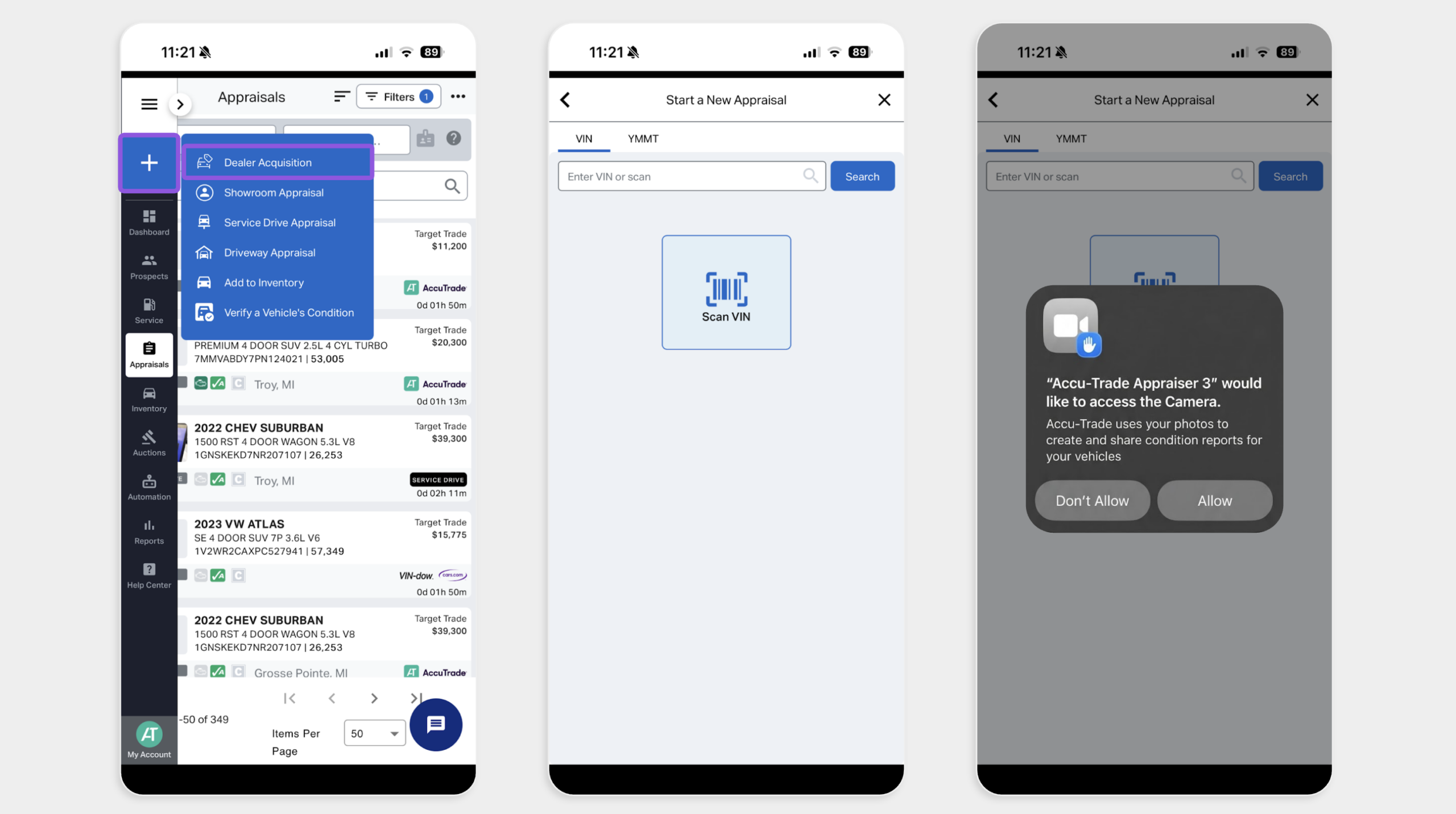
- Line up the VIN barcode on the vehicle inside the outline on your screen
- Select the correct trim to generate the appraisal
3Run the scan
- Tap the AppraisalPRO icon from the top menu underneath the VIN
You’ll notice the Scan Status indicating when the scan is complete.
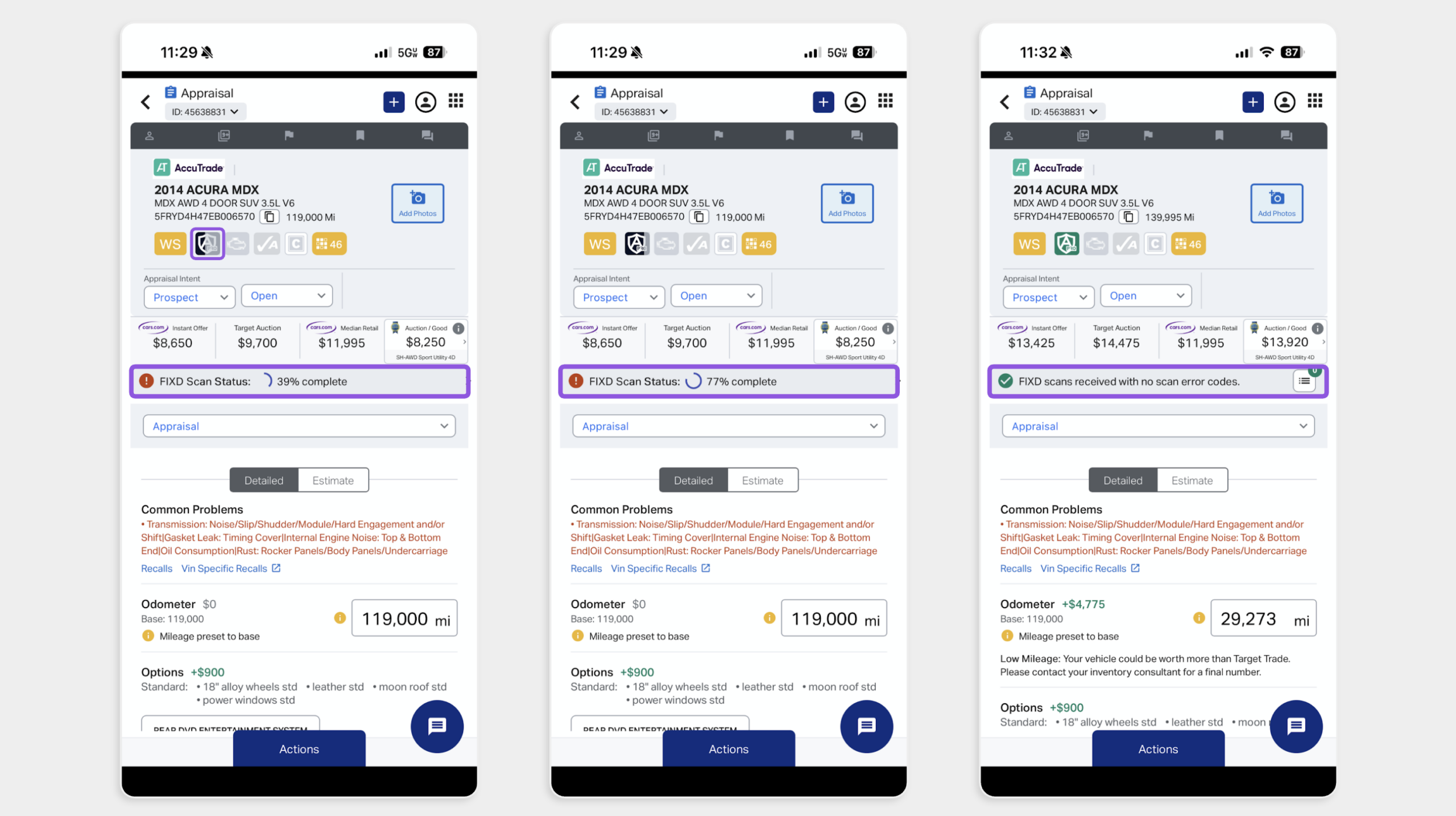
Tip: Alternatively, you can start the scan from the Actions menu. Tap Actions at the bottom of the screen, then tap Start AppraisalPRO Scan.
Walk the vehicle while the scan runs to manually enter value-impacting details on the appraisal screen, like:
- Correct mileage
- Added options
- Body and interior damage
- Tire tread depth
Your manual adjustments update the Instant Offer as you enter them.
Best practice: Complete every item on this list before you finish the appraisal:
- 11+ vehicle photos
- Options
- Exterior and interior colors
- Number of keys
- Vehicle history report (CARFAX/AutoCheck)
- Tire tread depth measurement
4Open the diagnostic report
- Click the AppraisalPRO icon again when the scan is complete to open the report
- The icon will turn from gray to green, yellow, or red when complete
- Green = no detected issues
- Yellow = non-value deducting issue detected
- Red = value deducting issue detected
- Tap OK to open the diagnostic status report
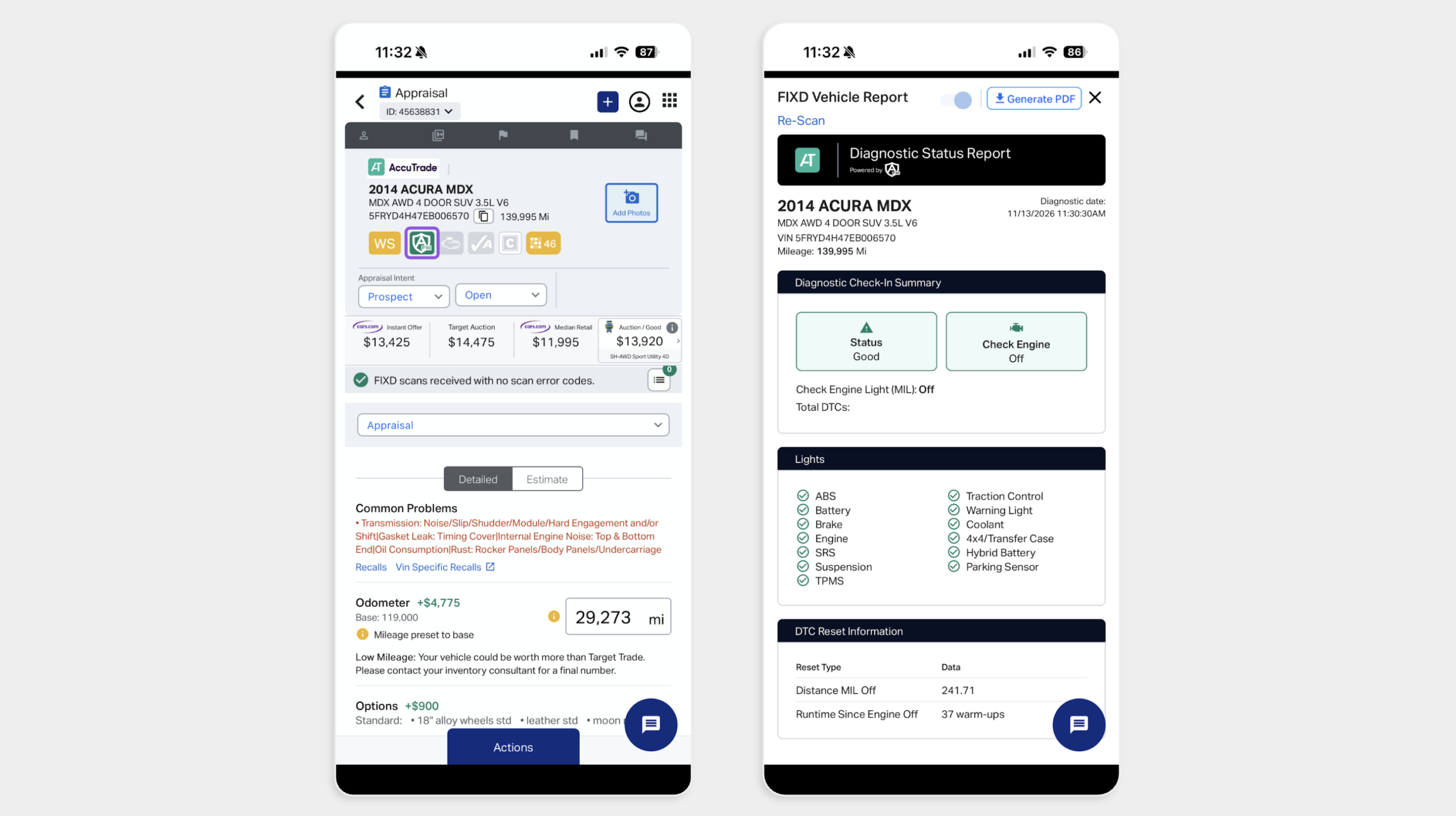
Your diagnostic report is ready. From here, you can:
- Generate a PDF to open the OBD scan report
- Share the report by text or email
- Return to your desktop to walk through the report with the seller
Frequently Asked Questions
What if I use a BlueDriver scanner instead of the AppraisalPRO scanner?
Follow the steps in these articles:
- How to pair your BlueDriver OBD scanner to set up your BlueDriver scanner
- How to appraise a vehicle with the AccuTrade mobile app to run your appraisal
Do you need to pair the scanner over Bluetooth?
No. The AppraisalPRO scanner connects without pairing. Make sure the vehicle is running, the scanner is plugged into the OBD port, and the AccuTrade app is open. If you have the BlueDriver device, see How to pair your BlueDriver OBD scanner.
What if the scanner light doesn’t appear?
- Check that the scanner is fully plugged into the OBD port
- Confirm that the vehicle is running
- Unplug the scanner, wait 10 seconds, and push it firmly back in
- Try the scanner in another vehicle
- Check your vehicle’s OBD or accessory fuse if no light appears
- The light shows green when connected and blue while the scan runs
What if the AppraisalPro icon doesn’t turn green?
Gray means the scan either hasn’t started yet or is taking place. Regardless of whether the icon is green, yellow, or red indicates that the scan is complete.
- Green = no detected issues
- Yellow = non-value deducting issue detected
- Red = value deducting issue detected
What if I see an error or the scan fails?
- Confirm the vehicle is running with the engine idling
- Check for a strong signal or Wi-Fi connection; a weak signal can stall a scan
- Close the AccuTrade app, reopen it, and start the scan again
Still having trouble? Email accutradesupport@cars.com for help.
How much does a scanner cost?
Each scanner is $75.