How to access your Reputation Health report
The Reputation Health report is a key tool that uses customer feedback collected to give your dealership quick, high-level insights into overall customer service quality. This report allows you to benchmark your performance against competitors in your market and OEM, quickly identifying both your strengths and key areas needing improvement.
By putting this valuable customer feedback into action, you can strengthen your online reputation with positive, recent reviews, which is critical for maximizing your exposure and driving better outcomes via the Best Match algorithm on Cars.com.
To get started
Go to the Cars.com Hub.
1 Find your reporting in the Cars.com Hub
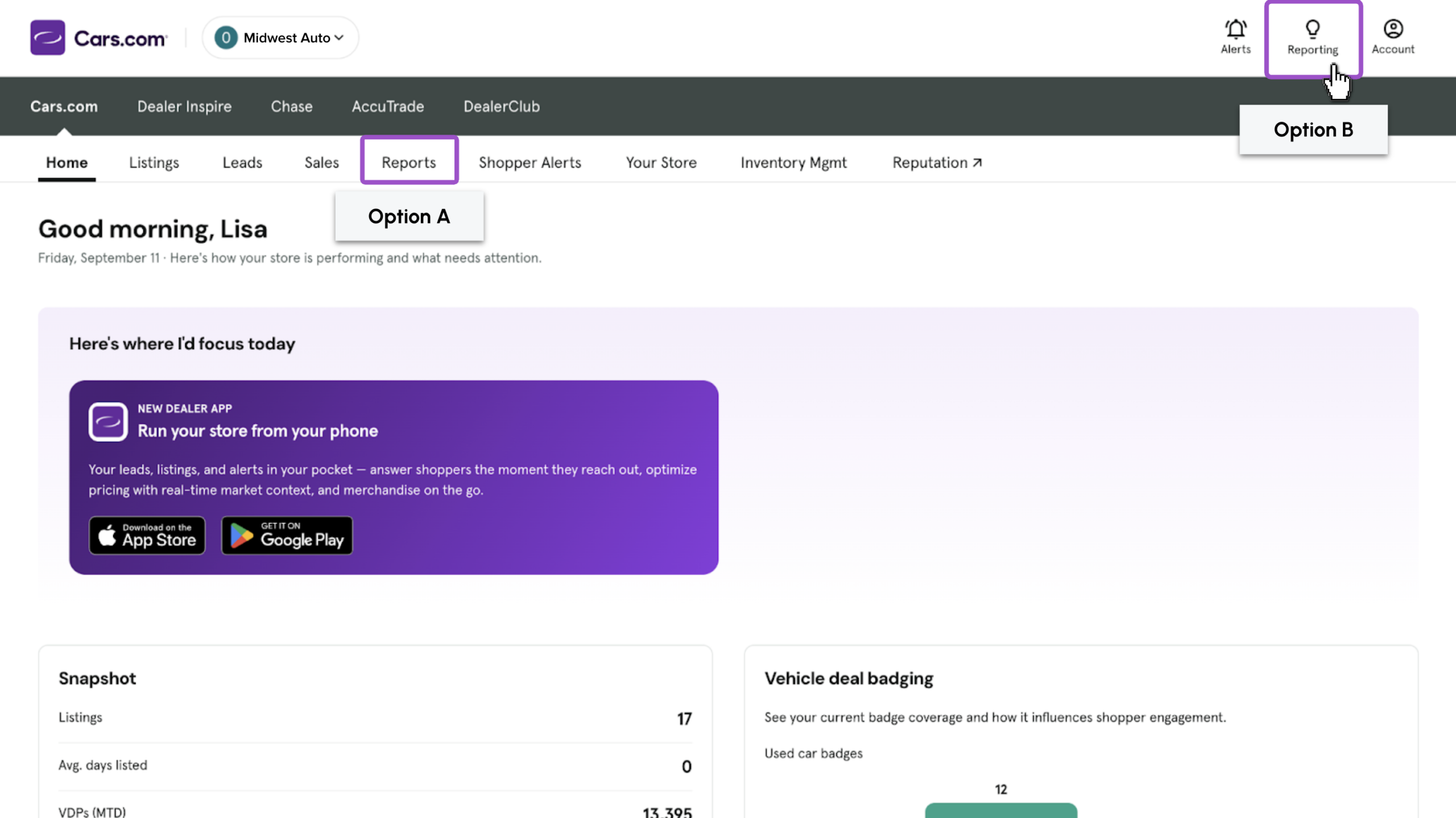
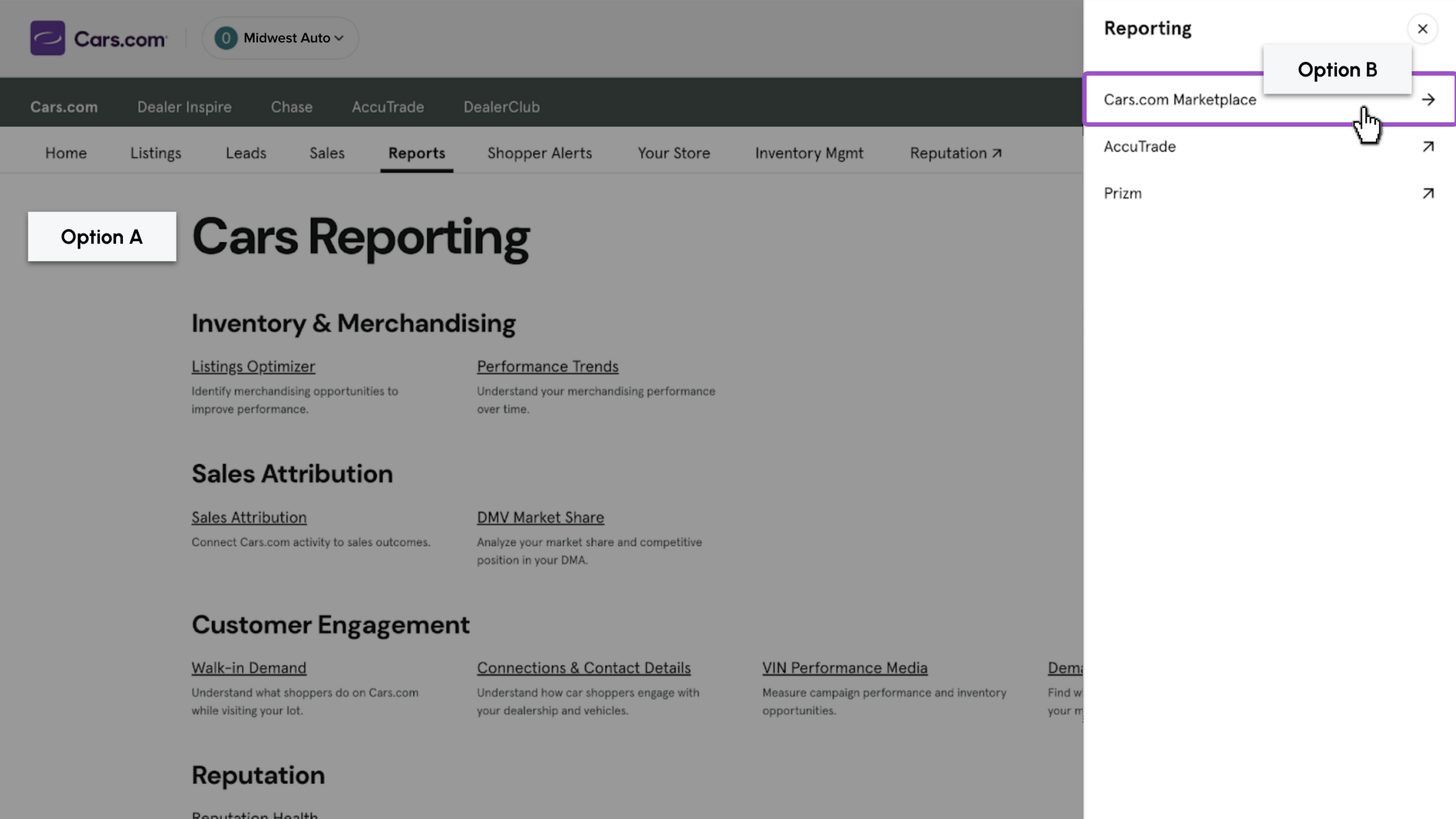
Get to your reports one of two ways:
- Option A: Click the Reports tab in the top menu; it opens the full Cars.com Marketplace Reporting page directly
- Option B: Click Reporting in the top right; a panel expands with shortcuts. Click Cars.com Marketplace to open the relevant report options.
2 Select Reputation
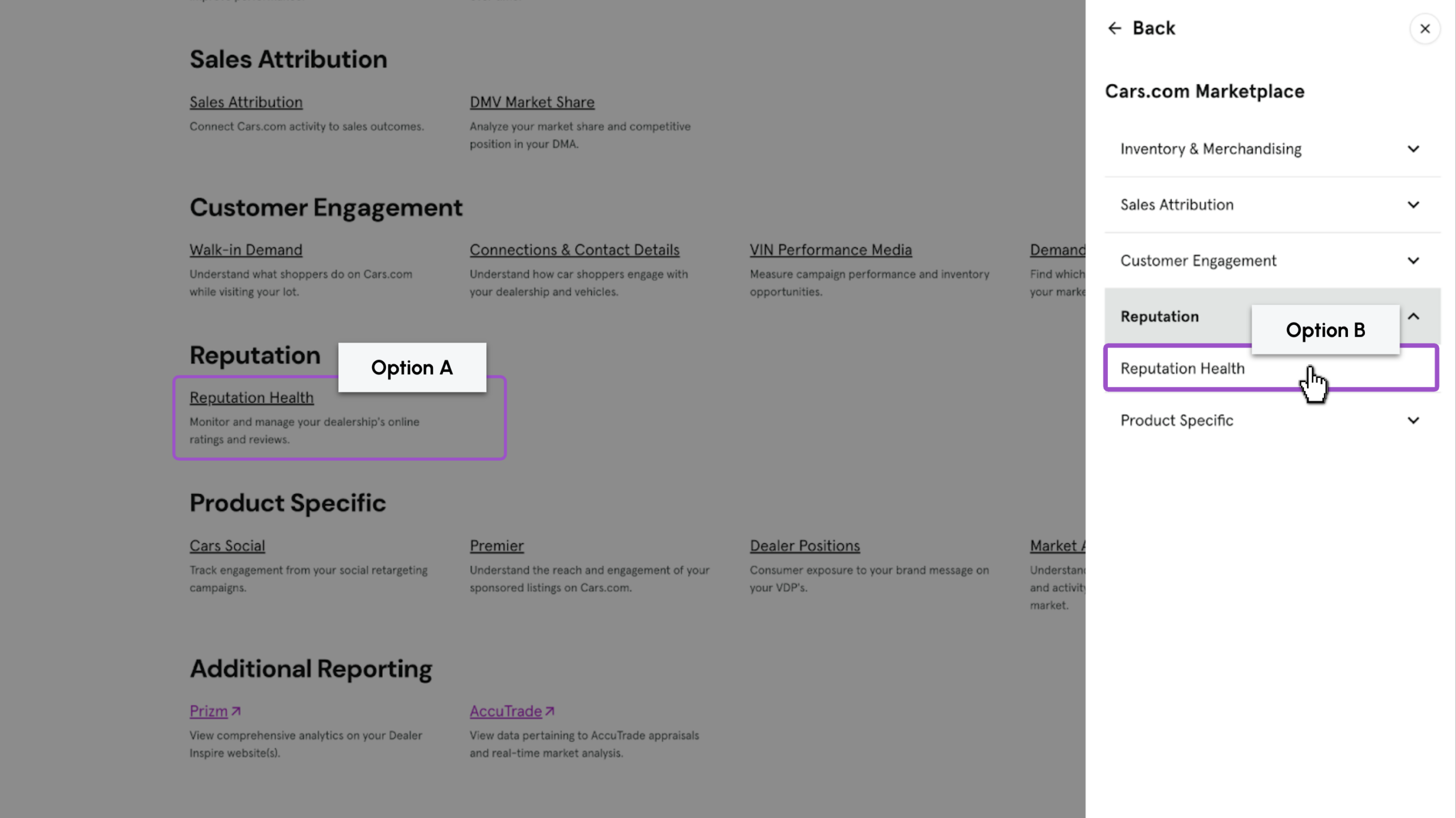
- Option A: On the Reports page locate Reputation, then click Reputation Health
- Option B: In the Reporting panel click Reputation, then click Reputation Health
3 Leverage the main tab
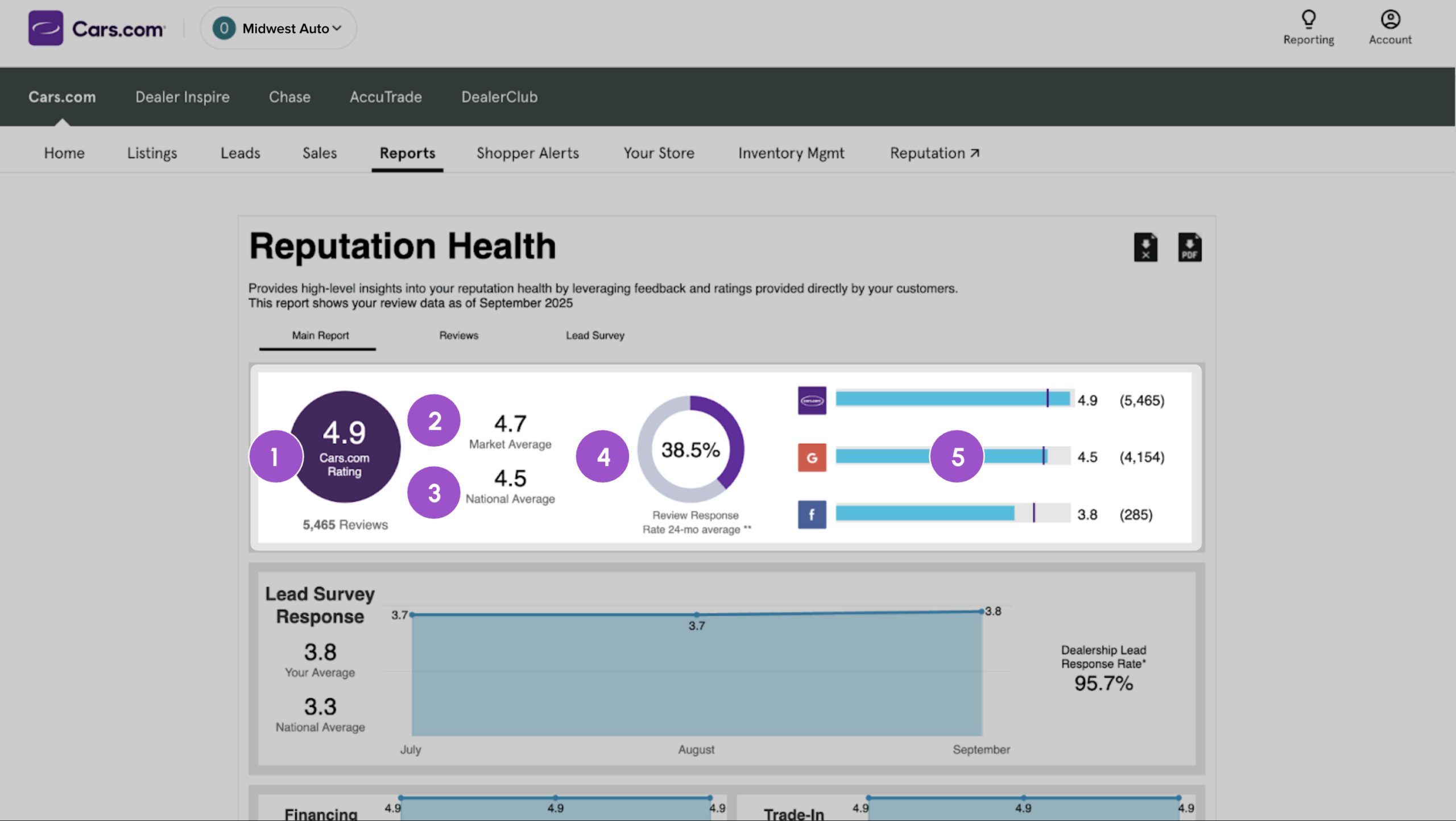
The main tab provides a snapshot of core reputation metrics, using rolling 24-month data unless otherwise noted.
Core metrics
- Cars.com Rating: Your dealership’s average Cars.com rating over the past 24 months, followed by the total number of reviews received during that period.
- Market and National Benchmarks provide a comparison of your rating against:
- Market Average: Dealers within your DMA
- National Average: All Cars.com dealers
- Market Average: Dealers within your DMA
- Review Response Rate: The percentage of reviews your dealership has responded to in the past 24 months. This reflects engagement with customer feedback.
- Total Marketplace Health: A summary of your current rating and total review count across multiple platforms, including Cars.com Marketplace, Google, and Facebook.
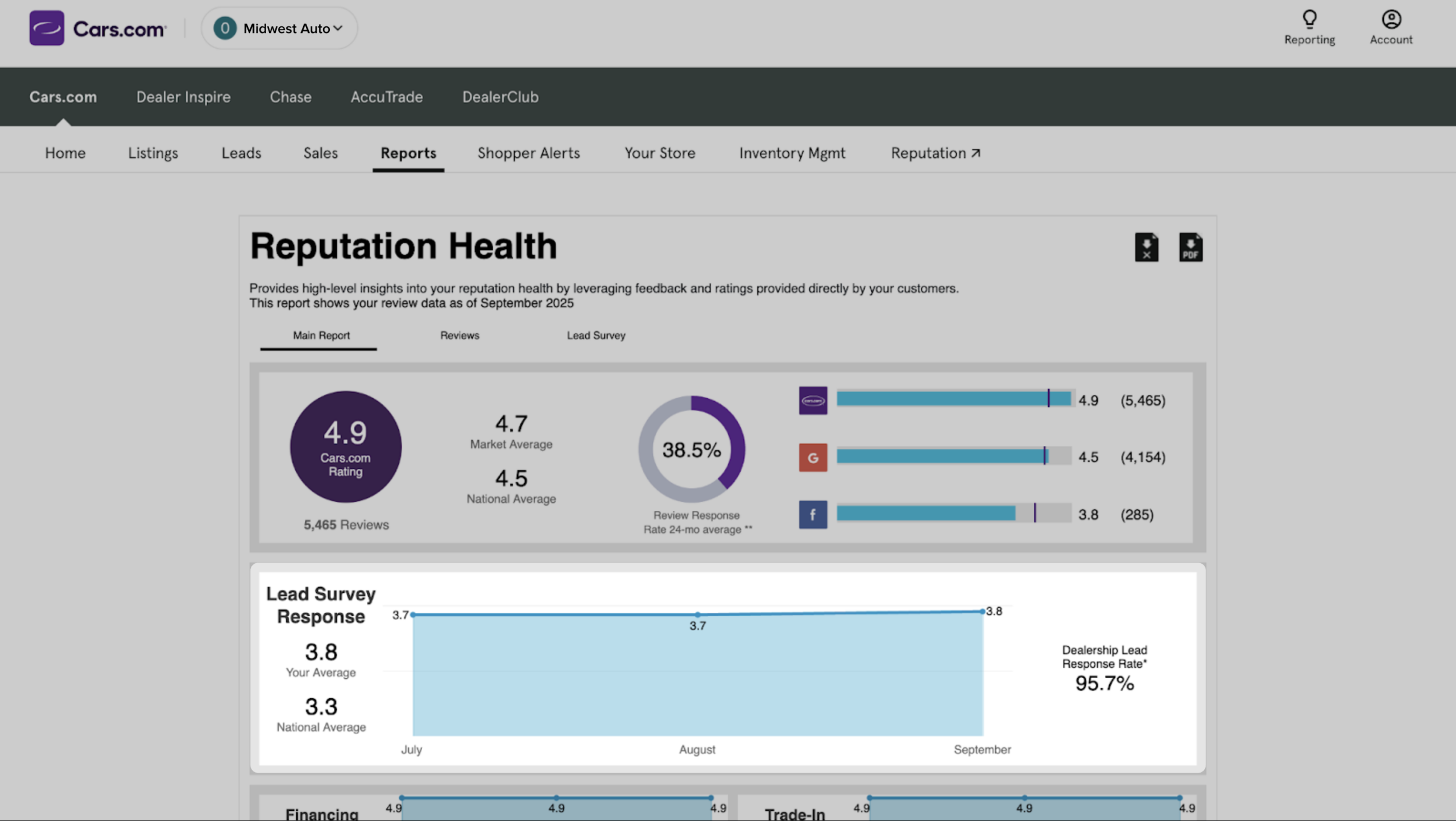
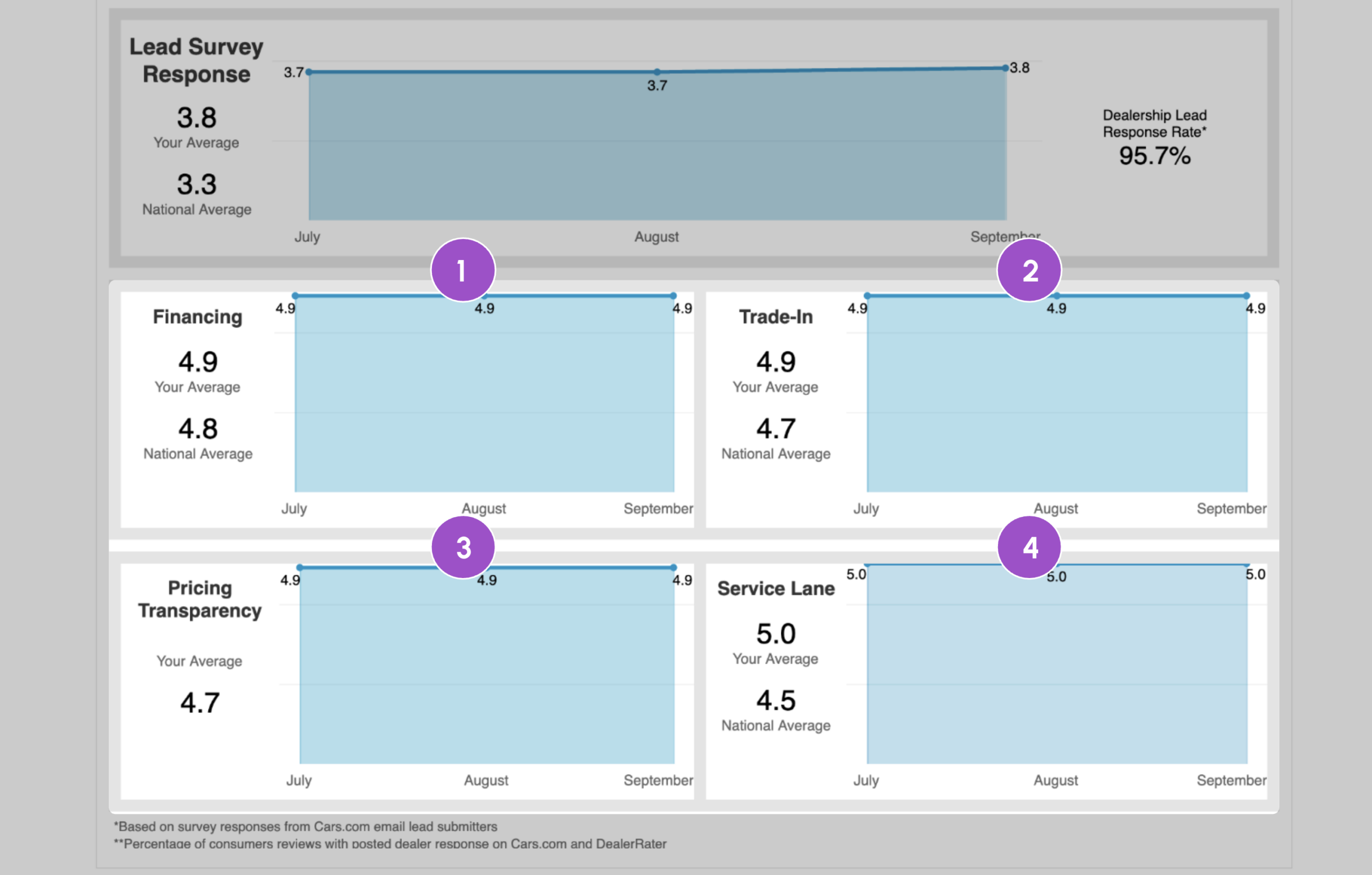
Lead Response Survey
The Lead Response Survey measures how customers rate your dealership’s response to email leads submitted through Cars.com.
- Survey question:
“How would you rate [dealership name]’s response to your inquiry?” - Rating scale:
1 = No Response Received
5 = Very Good - Lead Response Score:
Displayed as a rolling 24-month average based on survey responses.
A higher score indicates stronger follow-up and responsiveness to customer inquiries.
DealerRater sub-ratings
This section displays optional sub-ratings collected through the DealerRater review form. These provide more detailed feedback beyond the overall dealership rating.
- Financing: Customer experience with the financing process
- Trade-in: Customer experience when trading in or selling a vehicle
- Pricing Transparency: Customer perception of how final pricing was explained
- Service Lane: Derived only from reviews where the customer selected a Service visit type. This score is also displayed publicly on your Service Center Page on DealerRater.
All sub-ratings use a 5-point scale ranging from Very Poor to Very Good.
4 Leverage the Reviews tab
Click the Reviews tab to view individual review activity.
- Filter results by:
- Month(s) (review details are available for the last 4 months)
- Response status (responded or not responded)
- Month(s) (review details are available for the last 4 months)
- Summary table shows total reviews, responses, response rate, and average rating for the selected period
- Reference table shows:
- Review date
- Reviewer display name
- Review text
- Dealer response indicator and response text (if applicable)
- Customer rating
- Review date

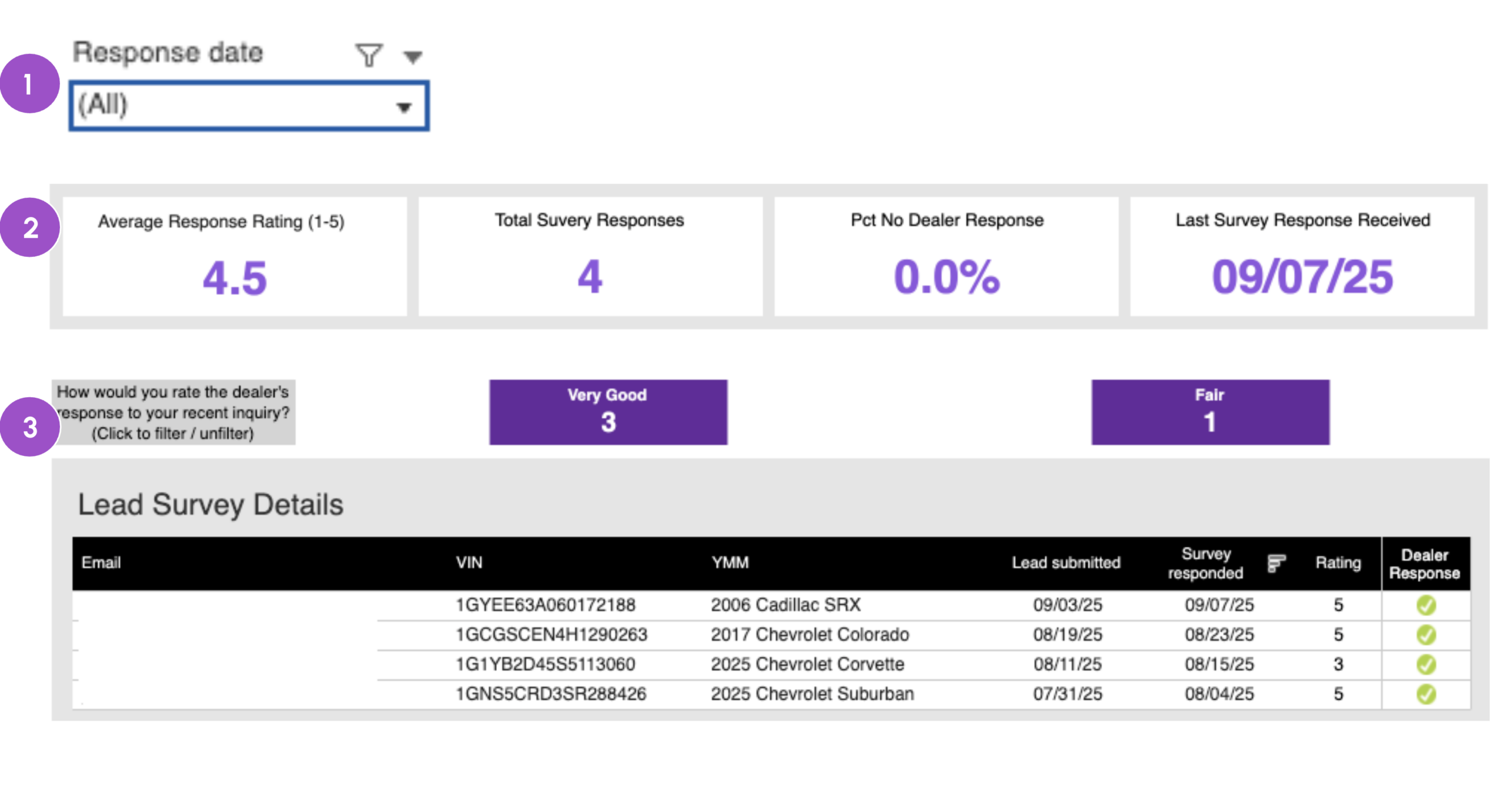
5 Leverage the Lead Survey tab
Click the Lead Survey tab to review customer survey responses related to lead handling.
- Filter your results by the month(s) you want to view (details date back 4 months).
- Summary table shows:
- Average lead response rating
- Total number of survey responses
- Percentage of leads without a dealer response
- Date of the most recent survey response
- The Lead Survey Details table includes:
- Email (partially hidden for privacy)
- VIN, year, make, and model
- Date the lead was submitted
- Date the survey was completed
- Customer score
- Indicator showing whether the dealer responded to the lead
- Email (partially hidden for privacy)